


Are you trying to figure out how to temporarily disable or permanently adjust the safety alerts and steering interventions on your dashboard? Drivers across Long Island often want to customize these systems to better match their daily driving habits. Here at Nissan 112 in Patchogue, we want to make sure you feel completely in control of your vehicle's technology.
Locate the Driver Assist Controls
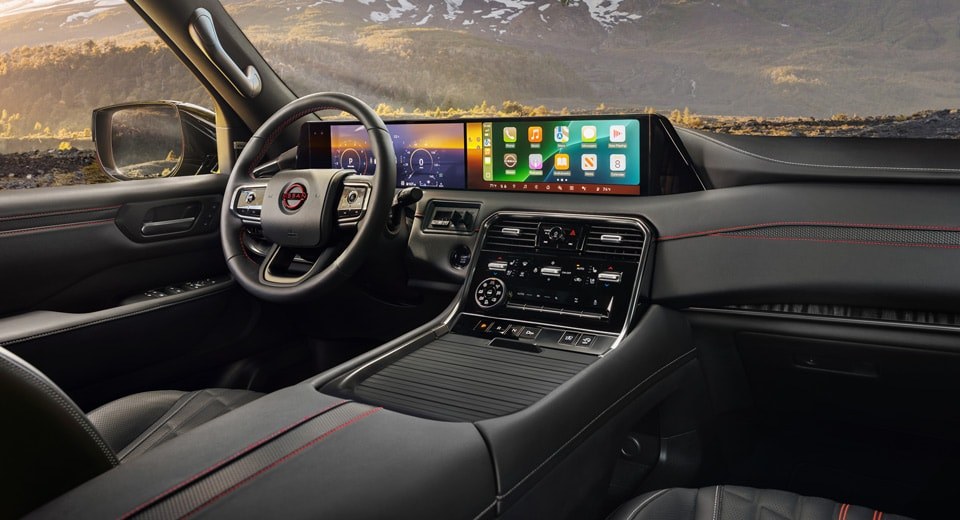
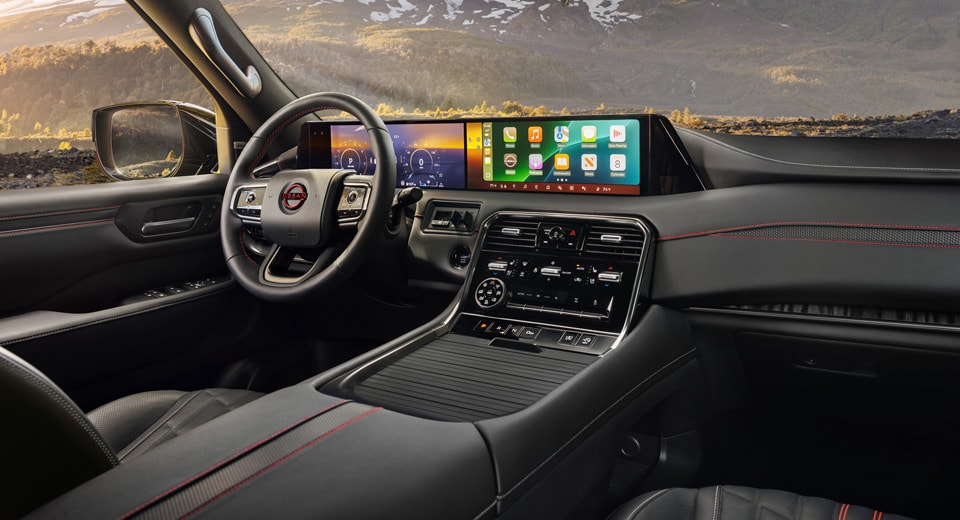
Finding the starting point for customizing your drive is simpler than you might expect. Most modern vehicles place these controls right at your fingertips to ensure you never have to take your eyes off the road for long. You will want to look at the left side of your steering wheel, where a cluster of directional arrows and an "OK" button reside.
These physical buttons correspond directly with the digital display sitting right between your speed gauge and tachometer. Locating these controls is the first step toward customizing how your car interacts with the road. Before you begin pressing buttons, make sure you are parked safely in a flat area, as navigating menus while driving can be dangerous.
The Secondary Button Panel
For some specific quick-toggle options, there is often a physical bank of switches located lower down on the dashboard, just to the left of your steering column. This panel usually houses buttons for systems like lane departure warning or traction control. Recognizing these two distinct control zones helps you manage your driving environment efficiently. Taking time to locate both options before you head out ensures you can react to any road scenario confidently.
Navigating the Digital Instrument Cluster Menu
Once you are safely parked, press the engine start button to power up your vehicle's accessory systems. Look closely at the small screen centered in your gauge cluster, which displays your trip odometer and fuel range. By pressing the left or right arrow keys on your steering wheel, you can cycle through different informational screens.
Scroll through these screens until you spot a gear icon or a menu labeled "Settings." Navigating the digital cluster is intuitive once you get the hang of using the steering wheel directional pad. If you accidentally skip past the settings screen, simply keep pressing the arrows to loop back around to the beginning.
Press the "OK" button in the center of the arrow pad to enter this menu. From here, you will see a list of customizable vehicle options ranging from lighting to maintenance alerts. Scroll down until you highlight the option specifically labeled "Driver Assistance" and press "OK" once more. Doing so opens up the direct control panel for all your active safety alerts.
Disabling Specific Safety Systems
Entering the driver assistance submenu reveals a list of individual safety features that you can configure independently. You do not have to turn off everything at once; instead, you can selectively target only the alerts that feel too intrusive. Use the scroll wheel or arrow keys to highlight features like Lane, Blind Spot, or Emergency Braking.
- Lane Departure Warning: Select this to turn off the vibrating steering wheel or audible beeps when crossing painted lines.
- Blind Spot Intervention: Toggle this if you prefer to rely solely on your mirrors without the car applying light braking to keep you in your lane.
- Forward Collision Warning: Adjust this to a lower sensitivity if you find it alerts too early during tight city driving.
Unchecking the box next to any feature will immediately deactivate it for your current journey. Keep in mind that some of these selections require a simple press of the "OK" button to toggle a checkmark, while others might open a deeper sub-menu with low, medium, and high sensitivity levels. Experimenting with these settings allows you to find a customized profile that matches your local commute.
Utilizing Dashboard Shortcut Buttons
If navigating deep digital menus feels too tedious before a quick trip, physical shortcut buttons offer an instant alternative. Manufacturers place these dedicated buttons within easy reach so you can make fast adjustments without scrolling. Look for a button featuring an icon of a car surrounded by concentric radar waves.
Pressing this button once will typically turn off the entire suite of active steering and braking interventions. A warning light will usually illuminate on your dashboard, indicating that the automatic systems are no longer active. Using physical shortcut buttons is the fastest way to adapt your vehicle to sudden changes in weather or road construction.
Temporary Nature of Shortcuts
These physical toggles are designed for temporary convenience rather than permanent changes. Deactivating features this way only lasts for the duration of your current drive, meaning the safety systems will turn back on the next time you start the engine. It is a highly practical solution when navigating through heavy snow or gravel roads where sensors can become confused. You get immediate relief from intervention without permanently disabling your safety net.
Understanding Automatic Reset Behaviors
Many drivers express frustration when they discover that their carefully configured safety settings have reverted to their default state overnight. This behavior is not a malfunction of your vehicle's computer. Federal safety guidelines and manufacturer defaults require critical safety systems to reset to "On" every time the vehicle is restarted.
Features like automatic emergency braking and forward collision warning are classified as primary safety devices. Understanding automatic resets will help you manage your expectations and plan your pre-drive routine accordingly. Only certain comfort-oriented features, such as blind spot warning volume, will save permanently to your driver profile.
To minimize the time you spend adjusting these settings daily, try to establish a quick startup routine. Getting into the habit of pressing your preferred shortcut buttons right after starting the engine saves time and prevents unexpected alerts. If you frequently share your vehicle, setting up individual driver memory profiles can also help preserve your specific preferences. These small habits keep you from feeling bogged down by technology before every trip.
Troubleshooting Sensor Errors and Cleanliness
Sometimes, safety features might disable themselves without you ever touching a button or menu. If you notice a warning light indicating that driver assist systems are unavailable, the culprit is often physical rather than electronic. Dust, mud, road salt, or heavy rain can block the delicate radar sensors and cameras.
Keeping sensors clean is vital for the proper operation of all driver assistance technology. The forward-facing radar is usually hidden behind the front grille badge, while cameras are typically mounted at the top of the windshield near the rearview mirror. Wipe these areas down with a soft, clean microfiber cloth if you experience sudden system dropouts.
If the warning lights persist even after a thorough wash, there may be a deeper calibration issue. At Nissan 112, we can help check your vehicle's sensor alignment using specialized diagnostic tools. Our extensive inventory, which ranks as one of the larger Nissan inventories in the Northeast, ensures we have the parts and tools needed to keep your safety systems working exactly when you want them to. This professional support ensures your safety features respond accurately when you decide to keep them active.
Expert Tips for Balancing Safety and Comfort
Finding the perfect balance between peace of mind and an uninterrupted driving experience does not have to be an all-or-nothing choice. Instead of turning every system completely off, consider fine-tuning their sensitivity levels. Most modern vehicles allow you to reduce the alert volume or shorten the warning distance.
Balancing safety and comfort allows you to keep critical safety nets active without experiencing annoying false alarms. For instance, setting your lane departure system to "vibrate only" keeps your cabin quiet while still warning you if your vehicle begins to drift. Adjusting these parameters lets the technology work for you rather than against you.
Rental Vehicle Adjustments
As the #1 Nissan volume dealer in the Northeast Region, based on Nissan sales reports for 2019-2025, we see drivers with these questions every day. Remember that Nissan rental vehicles can be reserved online through our dealership if you ever need a temporary car while yours is being serviced. Adjusting to a different vehicle's assist features is much easier when you know exactly how to tailor them to your personal driving style. Taking charge of these settings puts you back in the driver's seat, both literally and figuratively.
Patchogue, NY
- Access most driver assistance settings directly through the instrument cluster menus using steering wheel controls.
- Physical shortcut buttons near your left knee can quickly toggle active safety systems on or off for the current drive.
- Most safety features automatically reset to 'On' when you restart the vehicle, requiring a persistent menu change for permanent adjustments.
FAQ Common questionsWhy does my driver assist turn back on every time I start my car?Federal vehicle safety standards and manufacturer settings require critical driver assist features, like emergency braking, to default to "On" upon every ignition cycle. This design ensures that essential safety guards are active in case a different driver takes the wheel. Can I turn off Lane Keep Assist permanently?Most vehicles do not allow permanent deactivation of lane keep assist because of standard safety program overrides. However, you can permanently set the system to its lowest sensitivity level or to "Alert Only" within the driver assistance settings menu, which minimizes active steering intervention. Will disabling driver assist features void my vehicle's warranty?No, adjusting or disabling driver assist settings using the built-in steering wheel controls or dashboard buttons will not affect your warranty. These adjustment options are integrated by the manufacturer specifically so drivers can customize their experience. What does the flashing orange warning light on my dashboard mean?An orange or amber warning light typically indicates that a driver assist feature is currently disabled, either manually by the driver or automatically due to blocked sensors. If cleaning your windshield and front grille does not clear the light, the system may require professional diagnosis. How do I adjust the sensitivity of the warning alarms instead of turning them off?You can adjust alarm sensitivity by navigating to the "Settings" menu in your instrument cluster, selecting "Driver Assistance," and choosing the specific safety feature you wish to edit. Inside that menu, look for "Sensitivity" or "Alert Distance" to choose between high, medium, and low settings. |
Want to see it in person? Browse what is on the lot right now, or come by and see it in person. Or call (631) 651-1987 · 730 Medford Ave, Patchogue |